Backup Thunderbird Email
"I'm looking for an easy way to back up my email. I read your article on backing up Outlook, but I use Thunderbird. How do I backup my Thunderbird email?"
Most comprehensive backup applications support backing up the Thunderbird mail client. Email is a good place to start, but you also need to look for a more comprehensive backup strategy. Backing up your email is a good place to start; I certainly don't know where I'd be if my email suddenly vanished. Here's an easy way to make sure you don't lose any of your Thunderbird email messages.
Required Software
Thunderbird is the email client we will be backing
up.
MozBackup is the freeware application we will use to backup email messages.
Backing Up Thunderbird with MozBackup
 Once MozBackup is installed on your computer, backing up your email is relatively straight forward. There are a couple of steps to take before starting.
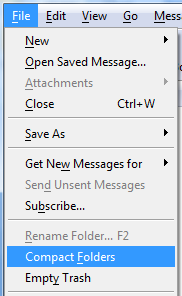
If you keep tons of sent items, attachments and other kruft in your inbox, the backup file may be quite large. One way to keep the size down is to first compact the Thunderbird folders. To compact folders, choose File > Compact Folders from the Thunderbird menu. On completion of this step, close Thunderbird before starting your backup.
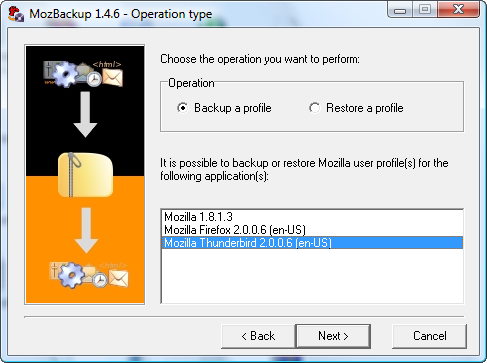
With Thunderbird closed, launch MozBackup, choose Thunderbird from the list of programs you can backup and click next.
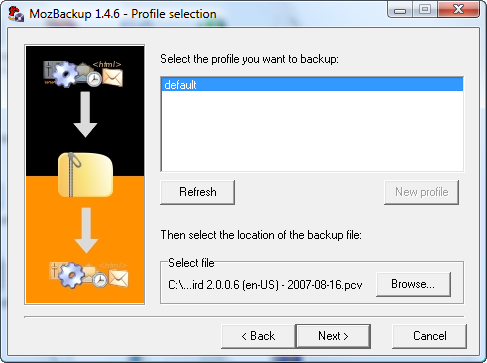
Choose your Thunderbird profile from the list. If you only have one profile on your system, this will likely be default. If you have more than one profile, you can repeat these steps for each profile to make sure no one using your computer loses their mail. At this point, you also choose the backup location. I highly suggest backing up your email to a drive other than the one your email is currently on - otherwise if your computer fails, you will lose both the original mail file and your backup.
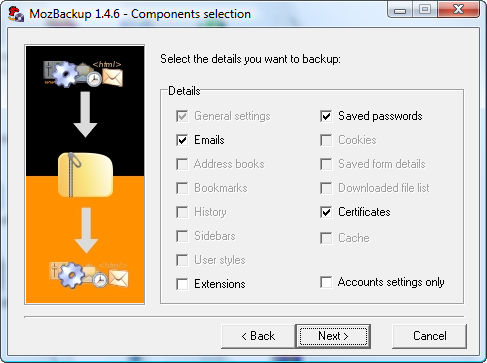
On the next screen you will select which components to backup. Unless there's some reason you don't want everything, I suggest backing up all components.
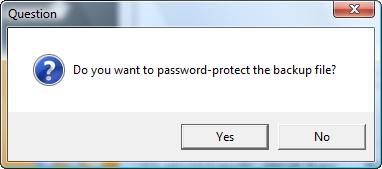
MozBackup will also prompt you to password protect your backup. This is optional, but possibly a good idea for security reasons.
At this point, MozBackup will backup your Thunderbird files to the directory you specified during configuration.
Additional Points on Backing up Thunderbird
MozBackup currently does not support scheduled backups. This is a manual process, which means you need to be sure to backup regularly. If you get mail infrequently, once a week is likely often enough. If you have tons of mail coming in everyday, you may want to backup Thunderbird as the last thing you do before you step away from the computer for the day.
MozBackup also backs up Firefox, which means you can backup your extensions, favorites, browser history and anything else you consider important to your online world with this same free program.