

I use an app called Second Copy for most of my backups. You can schedule backups a million ways with custom profiles depending on whether you need to copy entire directories, only back up files that change or only look for new data at certain times of day. When I originally configured it, my Outlook PST backup would fail because you can’t copy the file while Outlook is open. I almost never close Outlook.

While Microsoft has something called Personal Folders Backup to manually backup Outlook, using it interrupts my workflow and it isn’t automatic. One of the reasons I use Second Copy is because you can automatically run applications before and after the backup operation. This allowed me to create a batch file to automatically close Outlook before the backup and a second batch file to re-open Outlook after the backup finish. It occurred to me you could do the same thing using a similar batch file, the command line copy operation in Windows and Windows Scheduled Tasks. This tutorial walks you through this free method for backing up Outlook.
First create the batch file to close Outlook and copy your PST file. Open Notepad from Start > Run by typing notepad and clicking OK.
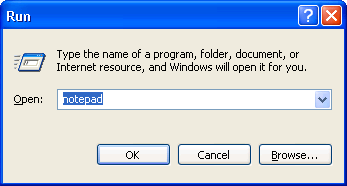
The first part of the batch file closes Outlook with this command:
taskkill /im outlook.exe
Next you need to pause the batch file to give it time for Outlook to shutdown before copying. The easiest way to pause the batch is to have it do something. In this case, we’ll have it ping your local machine a couple times. This doesn’t change anything on the system, but does by some time. Add the following lines:
@ping 127.0.0.1 -n 2 -w 1000 > nul
@ping 127.0.0.1 -n 2 -w 1000> nul
You need to do the ping twice to make sure Outlook is closed.
Next add the line required to copy your PST file to a backup location. In my case, I’m backing up the file to an external hard drive labeled K:
copy “D:\Documents and Settings\{username}\Local Settings\Application Data\Microsoft\Outlook\Outlook.pst” “K:\OutlookTest\Outlook.pst” /y
Replace {username} with your Windows logon. Make sure to use quotes around the source file and destination. The /y automatically overwrites the previous version of the file with the latest version. The finished file should look something like this:
Save the file with some meaningful name ending in .bat, choose the Save as type: All Files
Now it’s time to automate backing up Outlook. Open Scheduled Tasks, either from Control Panel or by navigating to Start > All Programs > Accessories > System Tools > Scheduled Tasks.
Double-click Add a Scheduled Task and skip past the first screen in the wizard. Click the Browse button and locate the batch file you created earlier.
Choose a name for the Scheduled Task. Set the task to run Daily to make sure you back up your email at least once a day.
Pick a time to run the batch when you won’t normally be using Outlook.
Enter your password for your Windows user account.
Once you click Finish the Scheduled Task will begin running at the scheduled time on a daily basis.
If you want to test the backup, right click the task to backup Outlook in the list of Scheduled Tasks and choose Run from the right-click menu.



