Browse Faster with Bookmark Keywords
Bookmarks are one of the worst implemented features in the history of the browser. You need special software to tell you when Bookmarks expire. Most of them are immediately forgotten, making a Google search more useful. They're like a breadcrumb trail you can't easily follow, because it becomes cluttered with too many crumbs. There's no easy way to recall your favorite links without digging through a mess that even when categorized in folders is still a mess. That is until Firefox came along with Bookmark keywords.
You may still bookmark things never to return again, but using bookmark keywords, you'll have lightning fast access to the pages you visit regularly. It's so useful, I'd argue that bookmark keywords are a reason to switch to Firefox all by themselves. To really harness this feature, you also need to download a handy Firefox Extension called OpenBook. Here's how to harness the power of Firefox Bookmark Keywords.
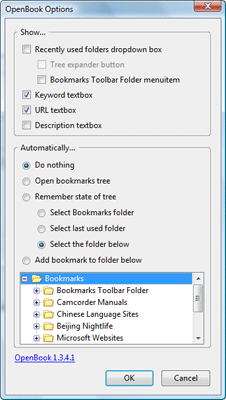
With Firefox installed on your system, download the OpenBook extension, which allows you to show more fields as you add a new bookmark. Once OpenBook is installed, go to Tools > Add-ons and click on the Options button for OpenBook.

This allows you to customize the box that pops up when you add a new bookmark. The image here is my chosen configuration options, you may find something else you prefer. The key thing is to check the box next to Keyword textbox.
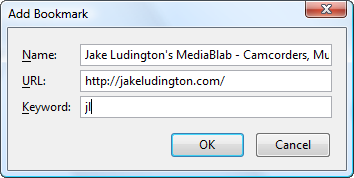
Go to a page you want to bookmark. jakeludington.com is a great choice! ;) Type Ctrl+D on your keyboard or Bookmark this Page. Your dialog box will show you the site name, url, and a blank keyword box. You can but any string of characters in that keyword box. I chose my initials, 'jl' for the example. Click OK to save the bookmark.
Now it's time to demonstrate your new power. Navigate away from the site you just bookmarked or open a new browser window. Go to the address bar (F6 can get you there) and type jl (or whatever you put in as the keyword). You're automatically taken to the site. No digging through your bookmarks, no typing the full URL. You can configure literally hundreds of these keywords to save you time. Here's how I use some of them:
g = Gmail
gd = Google Docs
tm = Techmeme.com
nv = Newsvine.com
I have a longer list of places I type in frequently, but that gives you an idea of what you could do. Typing two characters is always faster than typing the full url or reaching for your mouse and pulling something down from a list. A similar principle can be utilized anywhere in Windows using ActiveWords.