
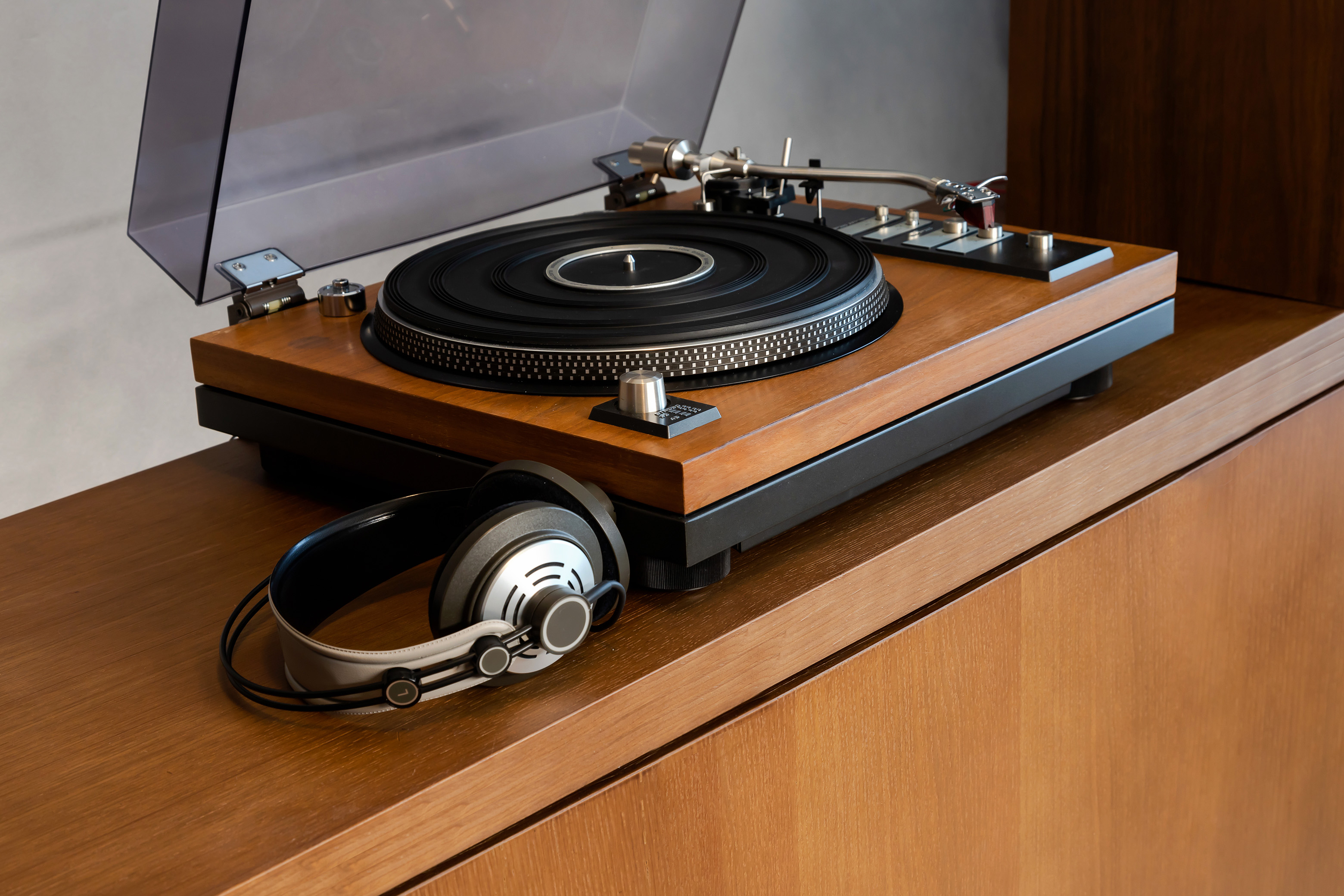

Do you own Microsoft Plus! Digital Media Edition or Plus! Super Pack for Windows XP? Both bundles include a great tool for converting LPs and cassettes to WMA format digital audio files. Microsoft created one of the best tools for converting your old records and cassettes to digital formats, but it has a few idiosyncrasies that need to be ironed out.
This free HTML tutorial steps you through the process of using Plus! Analog Recorder, Plus! Audio Converter, and Windows Media Player to create digital recordings of your analog audio.
What Reader’s Are Saying:
I just wanted to let someone know that the PDF Tutorial for Plus Analog Recorder was so well done and straight-forward, I was recording my analog cassettes to my hard drive within minutes of reading it. – Michael M.
Despite the inclusion of Plus! Dancer, which is possibly the silliest waste of CPU cycles ever released by Microsoft, Plus! Super Pack for Windows XP is a great investment. The effects and transitions for Movie Maker 2 are easily worth $19.95.
For anyone with a large collection of audio on cassette or vinyl, Plus! Analog Recorder is a great tool. The conversion process is straightforward, with some great noise reduction technology included for cleaning up the sound files.
For a more comprehensive guide download Converting Vinyl LPs to CD.
This tutorial walks through software included in the Microsoft Plus! Super Pack for Windows XP, which is no longer available.
Introduction
Converting audio from LPs and cassettes is a time intensive
process. All audio must be transferred from its original format to digital in
real time (there’s no high-speed dubbing like we had in the days of cassette
tapes). Microsoft Plus! Analog Recorder simplifies the process, offering a
straightforward solution for transferring your LPs and cassettes to Windows
Media Audio format. The purpose of this tutorial is to get you started
archiving your records and cassettes in digital format as quickly as possible.
Whether your goal is preservation of rare vinyl records or the conversion of
your favorite books on tape to mp3, I’ve outlined the process from start to
finish.
Hardware and Cabling Required
The rest of this tutorial assumes steps in this section have
been followed. Making hardware connections is software independent, following
the same steps, regardless of which audio applications are installed on your
PC. Some of these things may seem obvious; I’m covering them to be sure you
don’t miss anything.
To transfer audio from your record collection:

Your Line Out connectors will look like the top red and white connectors shown here.
You need an amplifier with Line Out connectors and a
turntable. Line Out connectors are usually labeled Rec Out in the Tape section on the back of your receiver. Newer amplifiers have a pair of one red and one white RCA jacks representing the right and left sides of the stereo spectrum.
If your turntable has a built-in preamp, you don’t need the amplifier. In this scenario, connect the RCA Line Out jacks from your pre-amped turntable to the Line In jack on your PC’s sound card.
For cassette recording, simply connect the Tape Out connectors on the back of your cassette player to the Line In jack your PC’s sound card.
Sound cards use 1/8-inch miniplugs for both input and output connections. When recording LPs or cassettes on your PC, connect the turntable or cassette deck to the Line In, which is frequently the black colored jack.
Cable Requirements

To connect a turntable or cassette deck to your computer, purchase a cable consisting of two male RCA plugs on one end and a stereo miniplug (1/8-inch male plug) on the other end. The cables shown below each have different colored RCA connectors; the colors on the outside of the cable don’t change how it works, so if the colors don’t match the colors of the jacks in the back of your stereo, don’t worry, they will still work.

Be sure to purchase a cable long enough to reach your computer and home stereo. For long cable runs, an XLR cable, like the one on the left, is important for preventing line noise in your recording).
Many laptops don’t offer a Line-In or microphone jack. To get around this limitation, a USB device like Griffin Technology’s iMic will do the trick. iMic has two ports and a switch. The input port doubles as both a microphone and line-in connection. The switch is used to level the line, depending on how you use it.

Check Your Connections
To verify your connection works properly, play a record on the turntable, with both your amplifier and computer turned on, after all the connections have been made. Assuming all cables were connected properly, the record will play through your computer speakers.
Troubleshooting
If you don’t hear anything: First, make sure your speakers are turned on. Next, check each cable, making sure all connections are fitted to their appropriate jacks. Finally, double-click the speaker icon in the Windows system tray. Check to make sure the volume control for your PC is not muted, with the slider somewhere above the bottom (volume 0) position. Check the Line In slider verifying the Mute checkbox is unchecked with the slider above the bottom position.

Setting the Record Control
This step is only relevant if you are using a USB audio device.
One final step, relating to the Volume Control, is properly configuring your sound card for recording. With the volume control open, either by double-clicking the speaker icon in the task bar or by using Start/Control Panel/Sounds and Multimedia.

Choose Options/Properties from the Volume Control menu.
Select the Recording option in the Adjust Volume For box and click OK.

The Volume Control panel is replaced by the Recording Control panel.
Check the Line In Select box, making the Line In your default source for sound recording.

When you begin recording, adjust the level of your Line In as needed by moving the slider.
Recording LPs using Plus! Analog Recorder
The first part of this tutorial sets up basic parameters for your computer and audio source. Now it’s time to start the recording process.
Step 1: Launch Analog Recorder
Start/All Programs/Microsoft Plus! Digital Media Edition/Plus! Analog Recorder

The first screen welcomes you to Analog Recorder and offers quick links to help files. Click Next to begin using the application.
Step 2: Adjust Your Recording Level.

Your computer’s sound card should already be selected by default in the Sound device drop down menu.
The second drop down menu, Input channel, lets you choose the port your record player or cassette deck is connected to. Make sure Line In is selected.
At this point, you need to push play on the cassette deck or put the needle on your record. Click the Start button on the screen so Analog Recorder can adjust the audio level on your system.

Once the application detects acceptable levels, click Next.
For USB Audio Devices Only: If you are using a USB audio device, like the Creative Extigy or an Edirol UA-5, like, Analog Recorder can’t automatically adjust the sound level. It does auto-adjust the Griffin Technology iMic without issue.
External Audio Devices

For external devices, manually adjust the input volume using the Recoding Control screen. The Level meter on the right hand side of the screen should never be a solid red color. The level may jump into the red, but should remain in the green and yellow zones to prevent distortion.
Once volume is adjusted to an appropriate level, click Next. A box like the one below will pop-up, informing you levels haven’t been automatically adjusted.

If you are comfortable with your level settings, click Yes. Proceed to the next step.
Step 3: Record Your Music
Before clicking the Record button, rewind the tape or move the needle back to the beginning of your record.

Advanced Recording Options

The Advanced button presents the options of having Analog Recorder automatically split your recording into tracks and set the maximum recording time. The default maximum recording time should be acceptable. If you are recording a speech or book on tape, I recommend unchecking Automatically detect and split tracks. Analog Recorder recognizes long pauses in speaking as new tracks, creating many 2-3 second tracks you will need to combine later.

Step 4: Review and name your tracks
For music cassettes and records, include song title, artist name, album, and genre for easy cataloging.
Split Recording into Individual Tracks
For audio books or speeches, you can divide large tracks into smaller segments, making it easier to listen to the recording in smaller blocks. Highlight the track in the list you want to split. Click Play or drag the slider to the point in the recording where you want the split to occur, and then click the split tracks button.

Splitting tracks is also useful for eliminating silence. If your cassette has a long lead-time at the beginning (or empty space at the end), find the point where the audio starts and click the Split Tracks button at that point. You can then discard the silent segment.
Unfortunately, the only undo for this process is recombining the tracks with the Combine Tracks feature.
Combine Tracks

If Analog Recorder divided a track incorrectly, combine the individual tracks using the Combine Tracks feature. Hold down the CTRL key, and then click each track you want to combine. When all tracks are selected, click the button with the arrows pointing toward each other.
Step 5: Clean your tracks
Typically, you will need both pop and hiss removal on vinyl records. Cassettes generally require hiss removal only. Test the cleaning process by clicking the preview button, to make sure your audio isn’t distorted. If the audio sounds clean, click the Next button.

Reduce Pops
This feature removes popping and crackling commonly heard on old records, giving the audio a cleaner sound.
Reduce Hiss
This feature eliminates tape hiss from your recordings.
Before you clean all your tracks… Test the pop and hiss removal with one track first. Once you have a combination that sounds good for one track, apply it to all tracks. This saves time, preventing the need to re-run the entire process on all tracks. It’s still a good idea to preview at least 30 seconds of each track making sure they sound good.
Step 6: Select settings and save tracks

By default, Analog Recorder saves tracks in the My Music folder. If you catalog your music differently, change this to the folder where your music is stored.
Unless you need to conserve hard drive space, I recommend leaving the Save music at this Quality slider on the highest setting.
For easy burning of your tracks to CD later, I recommend creating a new Windows Media playlist named for the artist and album.
Digital Rights Management (DRM)
To prevent potential pirates from copying your music files, lock them down by turning on DRM. This feature is an inconvenience if you plan to play your files on a computer other than the one you created the tracks on.

DRM configuration options are limited, with Microsoft offering a limited selection of choices. The disclaimer statement is presented the first time you use Analog Recorder.
Advanced File Naming Options
The Advanced button presents naming and organization options making file cataloging easier.

Clicking the Advanced button allows you to select a naming scheme. File names can be based on any combination of track number, track name, album title, artist, and/or genre.
Checking Save files to artist sub-folder and Save file to album sub-folder automates saving files in folders organized by artist and album.
After configuring all these settings, click Next.
Step 7: Saving your tracks

The only thing to do during this step is wait. Analog Recorder must process each track and save it as a WMA file.
At this point, you’ve completed the process of converting your analog audio to digital. If you want your file in some format other than WMA, the following steps will get you where you want to go.
Converting WMA to MP3
I couldn’t find a suitable free solution for converting WMA to MP3. Plus! Digital Media Edition includes Plus! Audio Converter, but it only converts to WMA without purchasing a third party MP3 codec. For $9.95, this isthe easiest solution available.
Microsoft recommends three different codec vendors: CyberLink, interVideo, and Sonic. All three products are virtually identical, although Sonic’s CinePlayer MP3 Creation Pack is priced $5 higher. I chose CyberLink because I’m a longtime user of their PowerDVD product.
MP3 Codecs At-A-Glance

MP3 PowerEncoder
170KB $9.95
Created By: Cyberlink Corp
Player Version: 9 Series XP
Copy music to your PC into MP3 format with Windows Media Player.

MP3 XPack
170KB $9.95
Created By: Intervideo, Inc.
Player Version: 9 Series XP
The MP3 XPack instantly adds the versatility of MP3 encoding (or ‘ripping’) to Windows Media Player with full support for features such as media information and folder creation.

CinePack MP3 Creation Pack
170KB $14.95
Created By: Sonic Solutions, Inc
Player Version: 9 Series XP
Create your own MP3 library by instantly adding high quality MP3 encoding (ripping) to your Windows Media player.
The MP3 codecs are actually Windows Media Player plug-ins. Audio Converter is a pretty face for this Media Player function, simplifying the process of converting groups of WMA files to MP3 or vice versa.
To convert your files from WMA to MP3 follow these steps:
Step 1: Open Plus! Audio Converter
Start/All Programs/Microsoft Plus! Digital Media Edition/Plus! Audio Converter

Click Next
Step 2: Add the files you want to convert

Click Next
Step 3: Select your conversion options

Choose the file format you want to convert to. I’m converting from WMA, so I choose CyberLink MP3.
I want to keep my files at the best possible quality. 256Kbps is considered near CD quality, so I could easily lower the quality below 320 Kbps, saving on disk space, without any perceptible degradation. Since I have hundreds of gigabytes free, disk space isn’t really an issue, so I leave the setting at 320.
Choose the folder you want your files saved in.
I unchecked Add my converted files to Media Library because I don’t need to have two versions of the same audio cluttering up my Library catalog. This is a matter of personal preference.
Step 4: When all files are converted, exit Audio Converter.
Burning Audio To CD
In Step 6 of the recording process, we had the option to create a Windows Media Player playlist of the tracks converted from cassette or LP. Assuming you did this, burning the tracks to CD is simple.
Step 1: Open Windows Media Player 9.

Step 2: Click Copy to CD or Device
This can also be accomplished by navigating to File/Copy/Copy to Audio CD…
Step3: Choose the playlist you want to burn to CD

Step 4: Insert a blank CD in your CD burner
If you don’t have a CD burner, the local computer store will have one for under $50.
Step 5: Choose the type of CD you want to burn
In the right hand drop down menu, select the type of CD you want to burn.
Audio CD is recommended for playback in your car or home CD player. Data CDs are great if you have a DVD player or portable CD player with WMA and/or MP3 support, because of the huge number of tracks that fit in either format.

Step 6: Click the Copy button.
It takes a few minutes to copy the audio tracks to CD. When the process is finished, test the CD out in your home CD player or in your car, to make sure it plays.
Conclusion
Now that you’ve completed the entire process once, you’re all set to copy your entire analog audio library. Just repeat these steps for each record or cassette and before long you’ll have a digital library to rival your record collection.



