
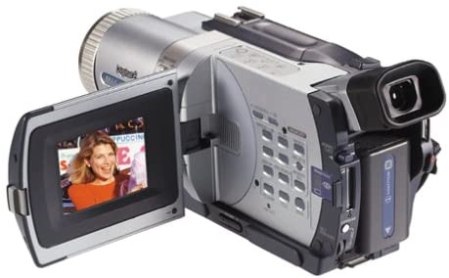
“I have a Sony DCR TRV-640 Digital8 camcorder. How can I get video from my camcorder into my computer?“
Sony created Digital8 primarily to address backward compatibility with all the 8mm video people created with their Hi8 camcorders for years leading up to digital video hitting a consumer price range. With a Digital8 camcorder you can playback old Hi8 tapes from the Digital8 camcorder or to record in digital using the same tape blanks. You get an advantage of FireWire capture (or as Sony calls it, i.LINK) with any of the Digital8 camcorder models, just like you would if you purchased a MiniDV camcorder.
Without knowing which video editing software you currently own, I’m going to walk through the process with free video capture application WinDV. WinDV is one of the best apps for video capture because it has a larger than average buffer queue to help prevent dropped video frames during capture. Whether your digital video camera is Digital8 or the more standard MiniDV variety, I highly recommend stepping through the list of recommendations to prevent dropped frames before beginning your video capture.
Connect your Digital8 camcorder to your PC using a FireWire cable. The i.LINK connection on the Sony Digital8 camcorders is always a 4-pin connector. Most desktop PCs, with the exception of Sony computers use 6-pin FireWire connections. Sony uses 4-pin connectors on their desktop PCs as well. On a laptop, the FireWire connection is almost always 4-pin. Make sure you get a FireWire cable to match your needs. For most desktop systems, this means you need a 4-pin to 6-pin cable. For laptops and all Sony computers you need a 4-pin to 4-pin cable.


With both ends of the cable connected, turn on your camcorder in VTR or VCR playback mode. Make sure the tape is rewound to the point you want to capture from. Launch WinDV. Create a name for the video capture file by clicking the … button next to Capt. file.
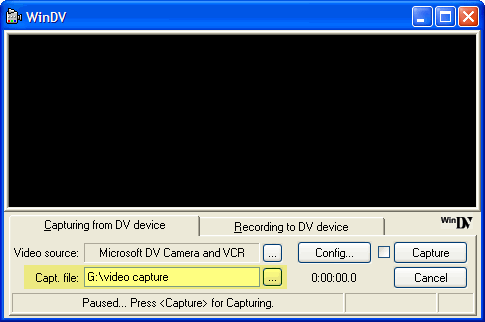
The software shows your camera as Paused…Press for Capturing.

Press the Capture button in the software and then press play on your camcorder. Other software applications integrate play controls, which is useful, but WinDV is one of the single best apps for preventing dropped frames, which makes me willing to put up with this shortcoming. When capture is finished, press the capture button in WinDV again and stop playback on your camcorder.
This file is now ready for editing in any video editing application. A great free video editor is VirtualDub.



