

Bennett asks, “How do I upload a camcorder tape to my computer? I want to upload my daughter’s video I took with my camcorder to the computer. What do I need to do?”
Since you mention that the camcorder uses tape, I’m going to assume that your camcorder is some sort of digital video camera using MiniDV. This means you need a FireWire connection in your computer and the correct cabling to connect your camcorder to your PC. You also need to have software for capturing the video from your camcorder – assuming you have Windows XP or Vista, you can use Windows Movie Maker to capture your video from tape.
Connecting Your Camcorder and PC
Connect your DV camera to your PC using a FireWire cable. The connection on digital video cameras is always a 4-pin FireWire connector (sometimes called either DV or iLINK depending on the camcorder brand). Desktop PCs, with the exception of Sony computers use 6-pin FireWire connections. Sony uses 4-pin connectors on their desktop PCs as well. On a laptop, the FireWire connection is almost always 4-pin. Make sure you get a FireWire cable to match your needs. For most desktop systems, this means you need a 4-pin to 6-pin cable. For laptops and all Sony computers you need a 4-pin to 4-pin cable. Photos of FireWire ports are available in a tutorial on how to locate a PC FireWire port.


Configure Windows Movie Maker for Video Capture
Before importing video from your camcorder, configure Windows Movie Maker. These settings will be reused in future projects unless you change them. Open Windows Movie Maker from Start > All Programs > Windows Movie Maker
From the Tools menu, choose Options and then click the Advanced tab. Set Video format to NTSC if you live in North America or Japan and PAL if you live in Europe or most other portions of the world. Aspect ratio should be 4:3 unless your camcorder records video in widescreen mode, which is 16:9. You can change these setting later if you use different record settings on your camcorder.

Turn on the Camcorder
After connecting both ends of the cable, turn on your camcorder in VTR or VCR playback mode. Rewind the tape on your camcorder. Windows Movie Maker can rewind your tape, but I generally recommend rewinding ahead of time.
Capture Your Video
Click on Capture from Video Device in the Movie Tasks section and name your video when prompted.

Select DV-AVI as the video quality for capturing, which is the same quality as the video currently on your MiniDV tape.

Choose capture the entire tape automatically.
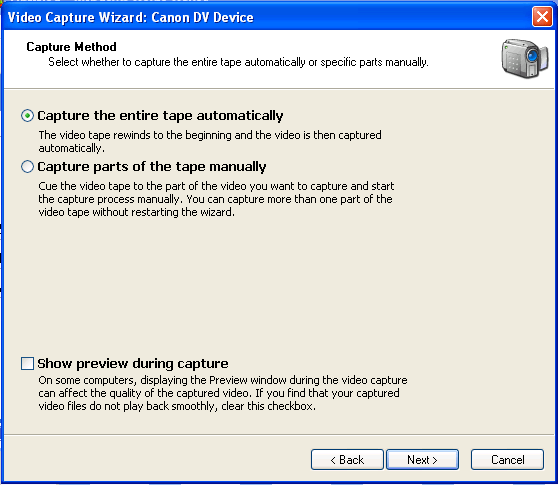
Wait for Windows Movie Maker to capture the entire tape.
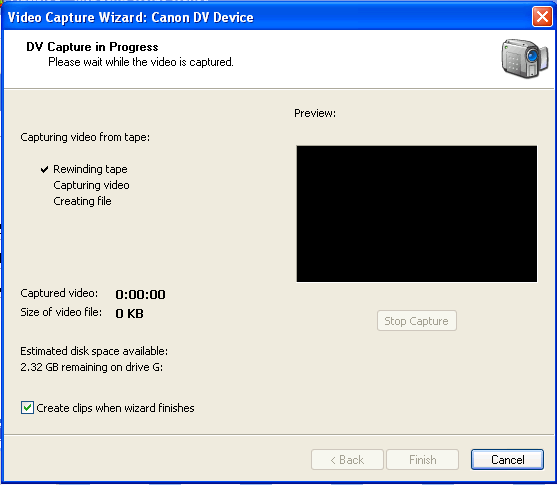
Once you finish capturing the footage from your camcorder, you can either edit the video or save out the file and burn it to DVD using something like MyDVD.
Read on for additional tips on editing movies with Windows Movie Maker.



