

I was in the middle of editing a file with Adobe Audition when it popped up an error message box titled Shutting Down… To continue working where you left off, please restart Audition. Clicking the OK button closed Audition.

When I reopened Audition, I was greeted with the following message:

Clicking continue now produced a file called Untitled with nothing in it. I know I should have saved my file, but I didn’t. How can I recover my audio?
This is one of the few times where I’m posting a question I personally needed an answer to, and my own answer to the question. As I was preparing an interview for The Chris Pirillo Show tonight, I somehow managed to hose the file and couldn’t find anything online to solve my problem. Knowing that Audition creates temp files and digging around in Windows for recently modified files provided the answer after some trial and error.
With any luck, you should be able to track the audio down in your Windows Temp folder. Browse to the folder via {system drive}:\Documents and Settings\username\Local Settings\Temp where {system drive} is C: or D: or whatever your main drive is and username is your username.
Switch your Temp folder to Details view from View > Details. Look for a group of files in the Temp folder named AudxNNNN.tmp where the NNNN is a number something like AudxA645.tmp. The file with the largest file size modified around the time Audition crashed will likely be the one you want.

Make a copy of this file and put the copy somewhere like your desktop. You don’t want to use the original .tmp because you are already trying to recover from not having a backup plan.
Open Audition and click on the Continue Later button on the Previous Session Detected dialog.
Choose File > Open and select PCM Raw Data as the Files of Type. Enter * in the File Name and click Open to show all available files including your .tmp file.

Choose the sample format that matches the format you were working in during the crash. Choosing incorrect results in a file that is either completely distorted or that sounds really bizarre.
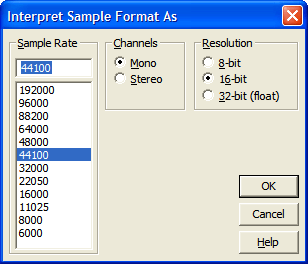
In most cases you can accept the default on the PCM Raw Data (no header) screen, unless you know you were recording using some other method.

Assuming you chose correctly on the two previous screens, you should now have an audio file containing your lost data and any edits you made prior to the crash, as this temp file is the location Audition stores changes so you can undo them.
Save the file, make a back up, take a stiff drink and breathe a sigh of relief that you don’t have to re-record. You can now edit your file.



