

How do you record the audio portion of a DVD to a standard CD?
There are several ways to tackle the process of converting the audio output from a DVD movie to something you can burn to CD and listen to in your car or elsewhere. Depending on whether the DVD you want to extract the audio from is a commercial release or something you own the rights to you need to tread carefully in choosing your options. In terms of complexity, the legal method of acquiring the audio from a commercial DVD may be less complicated anyway.
The most straightforward method for separating the audio from a DVD is simply to record it cassette deck style with an audio editing application. Using this method, you’ll open the DVD in a software player like PowerDVD, CinePlayer or WinDVD. To record the DVD audio track use your favorite audio editing application or download Audacity for free. Configure Audacity’s preferences to record 44,100 Hz, 16-bit Stereo. Choose Stereo Mix from the list of recording options or “What you hear” if you use a Creative Labs sound card. Press the Record button and start the movie. When the movie is done, stop the recording and close your DVD player application.
At this point, it’s a good idea to save a copy of the DVD audio, in case your computer crashes or the power goes out. You’ll probably need to break the DVD audio into more than one file in order to put it on CDs. A CD holds a maximum of 72 minutes of Audio. Most Movies are a least 90 minutes in length. You can either divide the audio into individual tracks and save each track, or you can save the audio as two big files to be burned to two CDs.
If you followed the directions here, the recorded audio likely has several seconds of silence at the beginning of the file. Before exporting your audio, eliminate the silence by selecting it from the audio timeline and tapping the delete key.
To split the file into multiple tracks, use one of two methods. Either select the section of the main audio file you want to split into a track and actually split the track by choosing Edit > Split from the menu which creates two separate tracks.


Using this method you then save the individual Audacity tracks as separate files.
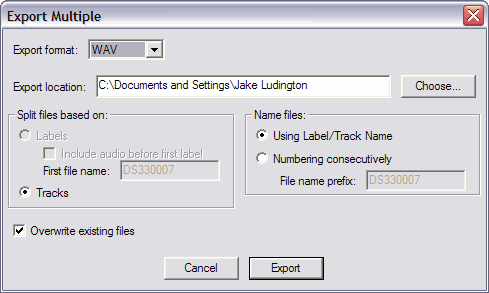
Alternatively, you can use the label feature to mark your track divisions and export each labeled section as an individual track. First, divide the audio file using separate labels for each track by specifying a segment of the audio and choosing Project > Add Label At Selection (Ctrl+B).

Once you’ve got all the track divisions label, export the labels as individual files.
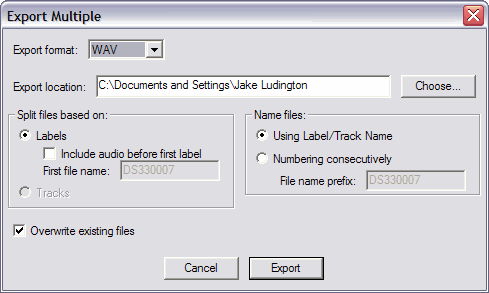
Using your CD burning software, create a playlist with a track order to burn the files in the order you created them.
The second method for doing this requires you to first rip the DVD using a software application like SmartRipper. If the DVD is a commercial release with Macrovision protection and CSS, this is a violation of the DMCA and therefore illegal in the United States as of this writing. It’s perfectly acceptable to use this method for extracting audio from any DVD you own the rights to or created yourself. Once you have the DVD ripped, an application called DVD2AVI can split out the audio as one big file. For a more visual guide to this process, take a look at the steps used in putting DVD video on a Pocket PC. The process is the same. At this point you’re back to the same problem of needing to make the file small enough to fit on a CD. The same directions for using Audacity described above are necessary to split the track into a manageable file size.



